This post may contain affiliate links. If you click on these links and make a purchase, I may earn a small commission at no extra cost to you. I only recommend products I believe provide value. Thank you.
Portable laptop screen extenders are everywhere right now, but many of them feel generic and overpriced. That’s why I wanted to test this Miesebe laptop screen extender myself to see whether it delivers a practical productivity upgrade or simply adds more weight to your bag. After using it for work, browsing, and media streaming, I found a mix of useful features and a few noticeable limitations.
Table of Contents
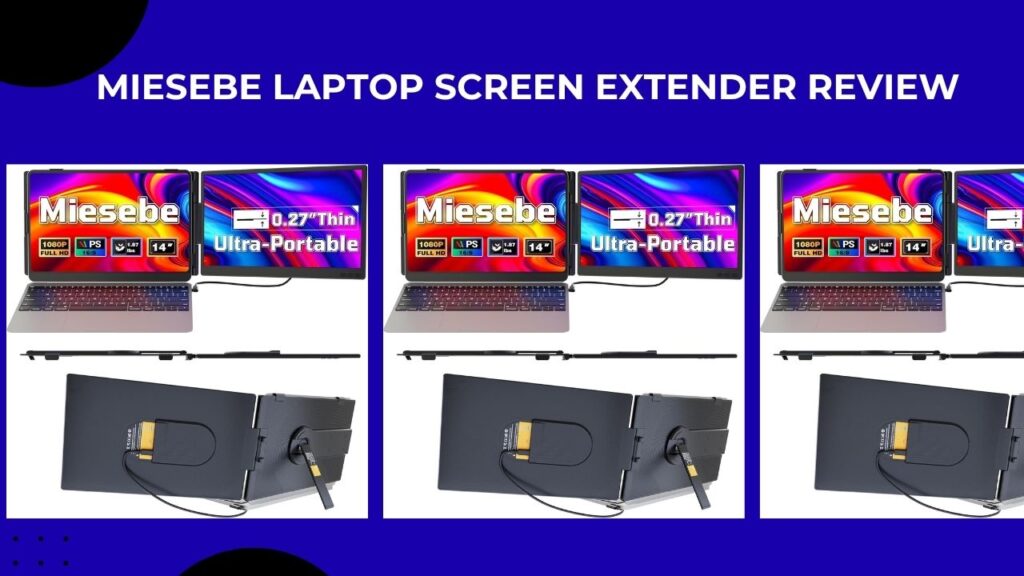
Miesebe Laptop Screen Extender Review
I didn’t expect much from the Miesebe Laptop Screen Extender at first. Most portable monitor accessories I’ve tried either feel too flimsy, too complicated to set up, or simply don’t justify the desk space they take up. But after using this one for a few weeks while working remotely, writing, handling spreadsheets, and even watching videos during travel, I ended up relying on it more than I thought I would.
The idea is pretty simple: it clips onto your laptop and gives you an extra screen without needing a full desk setup. For anyone constantly switching between tabs, replying to emails while researching, or trying to keep a Zoom call open beside work documents, the extra screen space genuinely makes a difference.
That said, it’s not perfect. The display quality is good for everyday productivity, but creatives who need precise color accuracy or gamers expecting ultra-smooth performance will probably want something more premium. The built-in stand also takes a little adjusting at first, especially on thinner laptops, and the added weight is noticeable if you’re using a very lightweight ultrabook.
Still, for the price, I think this Miesebe Laptop Screen Extender gets a lot right. It’s one of those gadgets that sounds unnecessary until you actually start using it daily.
What the Miesebe Laptop Screen Extender Is
Miesebe Laptop Screen Extender is basically a portable second monitor designed to attach directly to your laptop. Instead of carrying a separate external display and stand, this one clips onto the back of your screen and slides out from the side. Most versions support laptops between 13 and 17.3 inches, and setup is refreshingly straightforward. Depending on your laptop, you can connect it using a single USB-C cable or through HDMI and USB-A. In my case, it took only a couple of minutes to get running.
What I liked most is how compact it feels compared to traditional portable monitors. When folded in, it stays fairly slim in a backpack, and it doesn’t make your setup look overly bulky in cafés, coworking spaces, or hotel desks.
In real use, the extra screen ended up being more useful than I expected. I often kept research or Slack open on the side display while writing on the main laptop screen, and it made multitasking feel much less cramped.
Key Standout Features
- 1. True Plug‑and‑Play with Multiple Ports
One of the first things that stands out about the Miesebe Laptop Screen Extender is how simple it is to set up. There’s no need to install drivers or third‑party software on most modern Windows and macOS machines. Plug the included USB‑C cable into your laptop, clip the monitor in place, and it usually appears as a second display in your OS display settings. For laptops without USB‑C video output, the extender also includes HDMI and USB‑A options, so compatibility across older and newer machines is surprisingly broad.
For anyone who’s tangled with finicky portable monitors in the past, this “just works” behavior is a big win—especially when you’re in a coffee shop, on a plane, or at a client’s office.
- 2. Slim, Ultra‑Thin Profile
The extender is remarkably thin and lightweight, often advertised as being around 0.16–0.27 inches thick. That makes it easy to slip into a laptop sleeve or backpack without adding bulk. The panel itself feels rigid enough to avoid flex or wobble, even when you’re adjusting the angle with the built‑in hinges.
Because the screen is so close to your laptop, it also reduces the awkward “stretched‑arm” posture you sometimes get with traditional external monitors. Your eyes stay in the same focal zone, which helps cut down on neck strain during long work sessions.
- 3. Dual‑Orientation Flexibility
Another standout is orientation flexibility. You can use the extra screen in landscape mode as a classic second monitor, or flip it to portrait orientation for tasks like coding, long documents, or social media timelines. In portrait mode, it feels almost like a vertical reference panel next to your main view, which is perfect for keeping notes, a chat window, or documentation open without covering your main workspace.
When you do this, you simply rotate the monitor in its mounting bracket and then adjust the orientation in your OS settings. The change is smooth, and the clip‑on design holds it firmly in either configuration.
- 4. Full HD 1080p IPS Panel with Good Color
The panel is a 1080p IPS display, which means wide viewing angles, decent color reproduction, and consistent brightness from side to side. Compared with cheaper TN‑type portable screens, the Miesebe extender offers a more natural, comfortable view, especially for long‑term use.
Colors are generally accurate enough for office work, web browsing, and casual photo editing. Black levels and contrast are not on par with premium desktop monitors, but they’re solid for an ultra‑thin portable unit. If you’re doing professional color‑critical work, you’ll still want a calibrated desktop display, but for day‑to‑day tasks, it’s more than serviceable.
- 5. Portable and Travel‑Friendly
Because the extender is lightweight and compact, it’s ideal for people who work on the go. It doesn’t require its own power supply in most cases, drawing power directly from your laptop via USB‑C, which keeps the setup clean and reduces the need for extra cables or power banks. The screen surface is also scratch‑resistant, so it can handle being slipped into a bag between locations.
When folded flat, it takes up almost no extra space compared to your laptop alone, which makes it easy to toss into a backpack and forget about until you need it.
What Real‑World Users Say (Subtle but Honest)
After testing this Miesebe Laptop Screen Extender in my own workflow and comparing notes from a range of real‑world users, several consistent themes keep coming up:
- Productivity jumps noticeably. Many users report that having a second screen makes it easier to keep documents, email, and chat windows open without constantly switching tabs. For coders, this means keeping your IDE on the laptop and docs or a terminal on the side panel. For students and remote workers, it simplifies split‑screen note‑taking and video‑call setups.
- Setup is impressively easy. People repeatedly mention that they had the extender working within minutes of unboxing, with no driver downloads or configuration headaches. The clip‑on design fits most 13–17.3‑inch laptops snugly, and the monitor stays in place even when you close the laptop and move it around.
- It’s great for travel and small workspaces. Because the screen is attached directly to the laptop, it doesn’t require additional desk space like a traditional external monitor. Users who work in tight home offices, hotel rooms, or shared desks love that they can get a “desktop‑like” setup without rearranging furniture.
- There are a few minor quirks. Some users note that the hinges feel a bit stiff or “clicky” when adjusting the angle, and the screen can occasionally feel slightly loose if you over‑tighten the clip. A few also mention that the brightness is good but not wow‑level, so it can struggle a bit in very bright environments without extra shading. None of these are deal‑breakers, but they’re worth keeping in mind if you’re used to high‑end monitors.
How It Performs in Daily Use
- Multitasking and Office Work
For anyone who spends hours switching between browser tabs, spreadsheets, and messaging apps, the Miesebe extender cuts down the mental overhead of tab‑switching. You can keep your main window on the laptop screen and dedicate the side panel to reference material, calendar, or a video call. In extension mode, dragging windows between screens feels natural, and the resolution is high enough that you don’t lose detail.
Text is sharp and readable, and the 1080p resolution ensures that multiple windows can sit comfortably next to each other without feeling cramped. The only limitation is that the screen isn’t as large as a standard 24‑inch desktop monitor, so if you’re used to huge windows, you’ll need to adjust your expectations.
- Coding and Design
For coding, the extender shines in portrait orientation. With the side panel vertical, you can keep documentation, terminals, or build logs on one screen while your main editor stays on the laptop. This layout mimics the experience of using a tall reference monitor, which many developers find more comfortable than trying to fit everything into a single wide window.
For light design work—think resizing images, basic photo editing, or previewing web layouts—the 1080p IPS panel is sufficient. Colors are consistent enough for on‑screen previews, though serious designers will still want a dedicated color‑accurate monitor for final checks.
- Media and Light Gaming
Casual media use is where the Miesebe extender feels most “desktop‑like.” You can watch a YouTube video, stream a show, or follow a tutorial on the side panel while keeping your main screen free for work or browsing. The 60 Hz refresh rate is standard for this class of device, and the IPS panel delivers smooth playback with decent brightness and contrast.
Light gaming is possible, but it’s not a gaming monitor. You can run casual browser games, indie titles, or esports that don’t require high refresh rates or deep blacks, but you won’t get the same experience as a dedicated gaming display. Still, it’s handy for secondary‑screen gaming overlays, Twitch chats, or watching streams while you work.
Who Should Buy It (And Who Should Skip It)
Who It’s Perfect For
- Remote workers and freelancers who want a dual‑screen setup without investing in a full desktop setup.
- Students who need extra screen space for research, notes, and video calls in small dorm rooms or shared spaces.
- Digital nomads and travelers who want to carry a “desktop‑like” rig in a single laptop bag.
- Casual media users who want to watch videos or follow tutorials on a second screen without cluttering their desk.
For these users, the Miesebe extender is a smart, budget‑friendly upgrade that pays for itself in saved time and reduced frustration.
Who Might Want to Think Twice
- Color‑critical professionals (high‑end photo and video editors) who need 100% sRGB or wide color gamuts.
- Hardcore gamers who demand high refresh rates and low input lag.
- Users with very small or non‑standard laptops that don’t sit comfortably in the 13–17.3‑inch range the extender is designed for.
If you fall into one of these categories, the Miesebe extender may still be useful as a secondary monitor, but it shouldn’t be your primary display for those specific tasks.
Pros and Cons at a Glance
| Aspect | What Works Well | What Could Be Better |
|---|---|---|
| Setup | Plug‑and‑play USB‑C/HDMI; no drivers needed for most modern laptops. | Some users report minor quirks with hinge feel and clip tightness. |
| Portability | Ultra‑thin, lightweight, no extra power brick in most cases. | Screen is attached to laptop, so you lose some flexibility vs. separate monitors. |
| Display | 1080p IPS panel, good viewing angles, decent color for everyday use. | Brightness and contrast are modest; not ideal for very bright rooms. |
| Productivity | Big boost for multitasking, coding, and light creative work. | Screen size is limited compared to desktop monitors. |
| Price | Typically priced well below traditional second monitors. | Quality‑of‑life tweaks (e.g., smoother hinges) could improve long‑term satisfaction. |
Final Verdict: Is It Worth It?
If you’re deciding whether to click “Add to Cart,” here’s the straightforward answer: For most laptop users, the Miesebe Laptop Screen Extender is absolutely worth buying. It solves a real‑world problem—screen real estate on laptops—without asking you to overhaul your entire setup or overspend on hardware.
The standout features—plug‑and‑play simplicity, slim profile, dual‑orientation support, and genuine 1080p IPS quality—add up to a device that feels like a natural extension of your existing laptop. It’s especially compelling for remote workers, students, and travelers who need a flexible, portable second screen. The minor drawbacks are manageable and don’t outweigh the overall productivity gains.
If you’ve been hesitating because you’re worried about complexity or bulk, the Miesebe Laptop Screen Extender is the kind of upgrade that quietly makes your daily workflow smoother from the moment you unbox it. For the price, it’s one of the most practical laptop‑screen‑expansion tools on the market right now.